
What this board answers
Where does the team talk? Chat is your studio’s own team chat: channels for the whole team, each location and each role, plus direct messages between people. Everyone who works at the studio can be in it, and it costs nothing per person.
Chat is switched on studio by studio. If it isn’t in your menu, it isn’t on at your studio yet.
How to read it
What the studio keeps. Chat is for work. Direct messages are between the people in them and don’t show on managers’ dashboards, but the studio keeps every message, photo and file, including edited and deleted ones, and its authorized admins can export them for HR investigations, policy enforcement or legal compliance. How long it keeps them is the studio’s choice, in Settings > Chat.
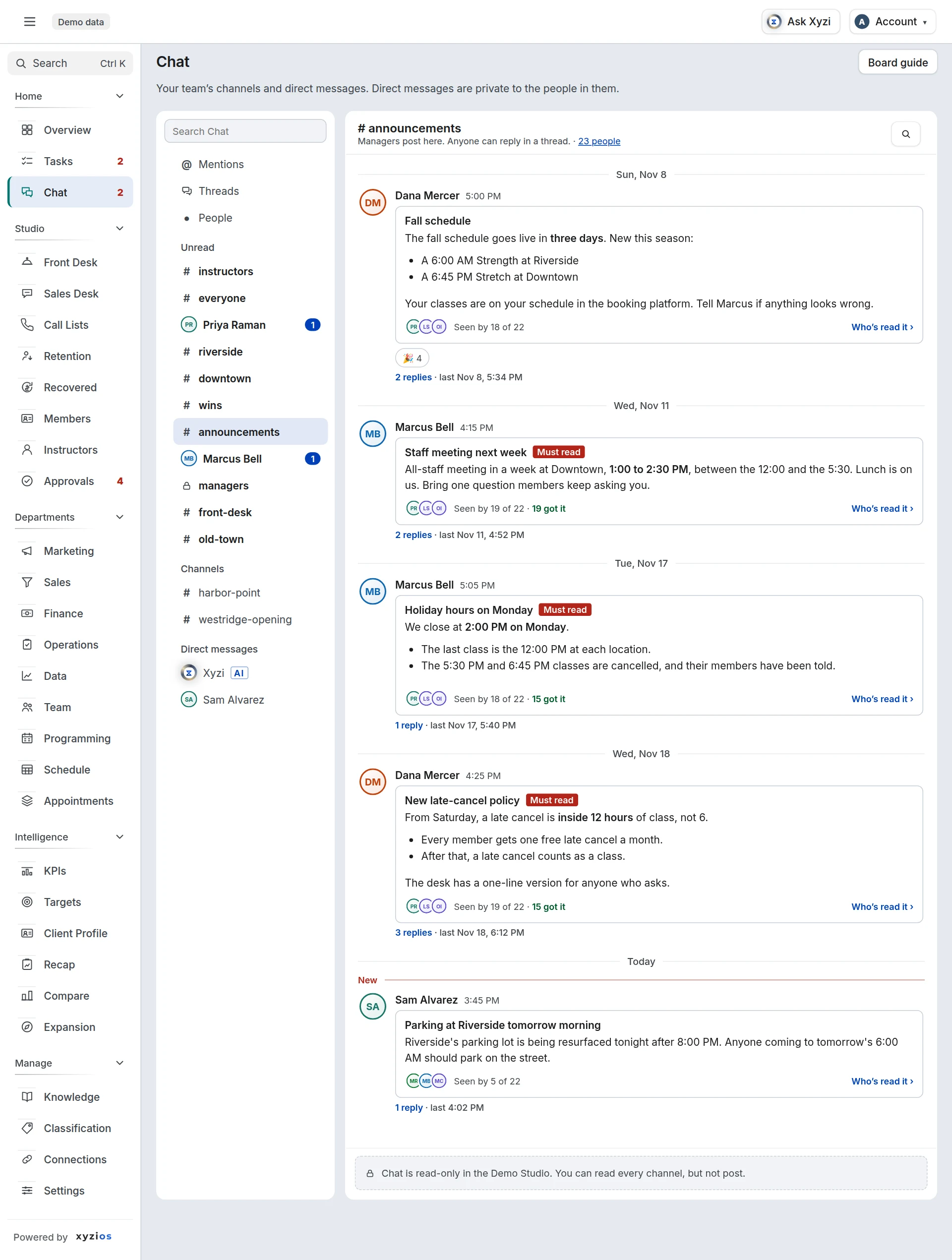
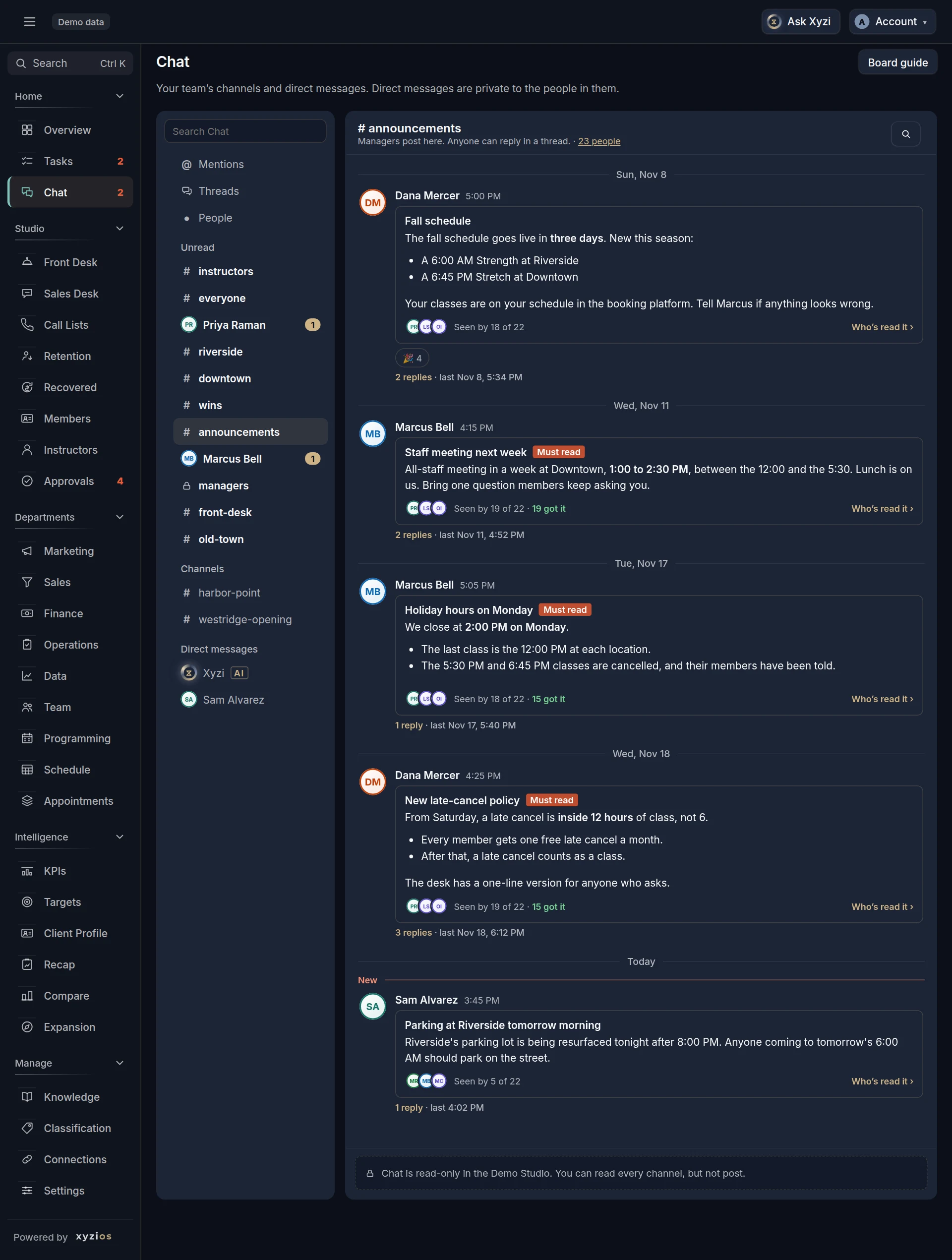
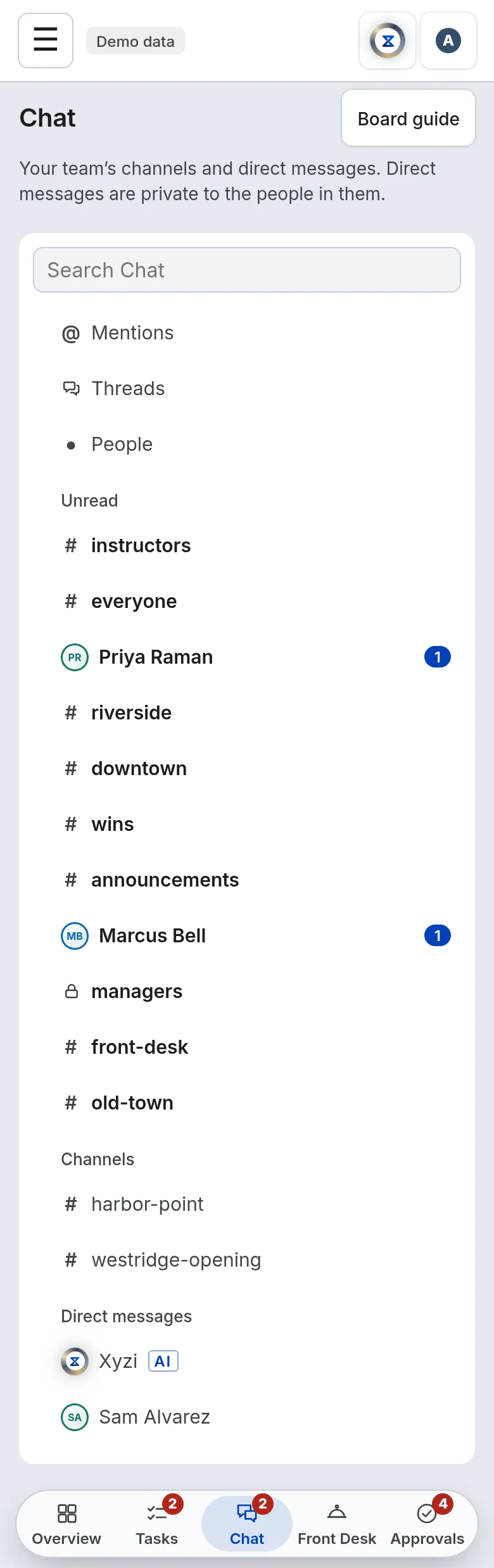
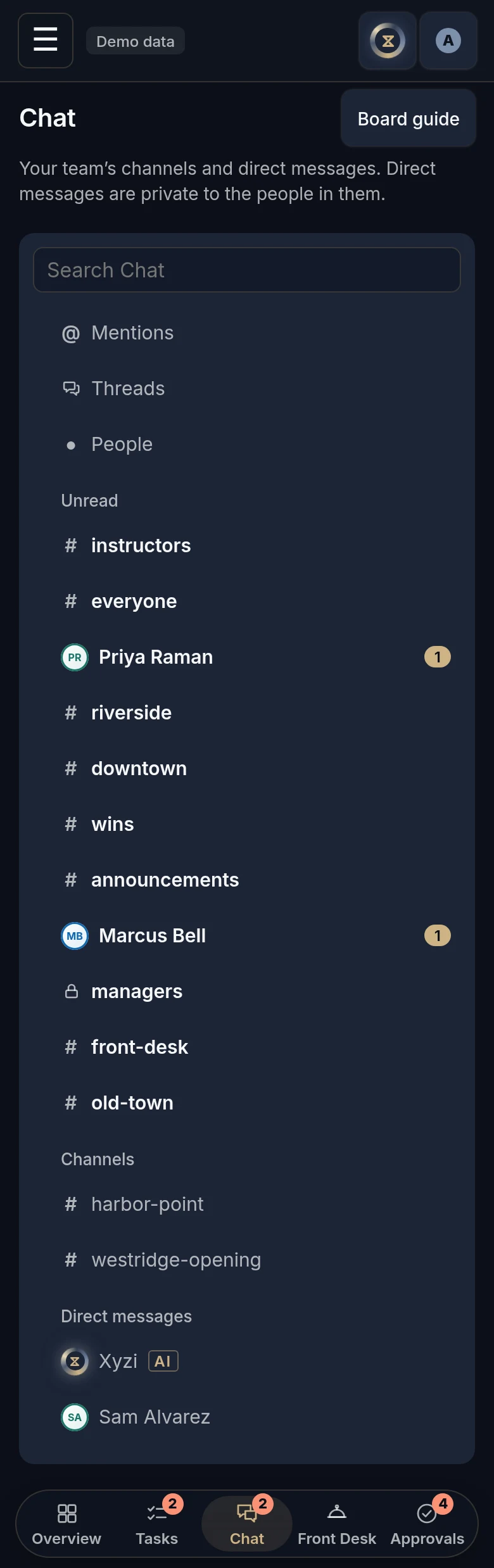
On the left are your conversations, with 1Search Chat over them.
- Mentions, at the top, gathers the messages that mention you or @channel, replies in threads included, newest first. Open takes you to the message, or to its thread.
- Threads, under Mentions, lists the threads you follow, the one answered last at the top, with how many replies are new in each and the latest ones. You follow a thread you started, replied in or were mentioned in. Open the thread takes you there.
- Scheduled, while you have any, lists the messages you wrote to send later, the soonest first.
- People is everyone on Chat at your studio: their role and where they work, with Message beside each.
- Unread, when something is new, lists those conversations first, channels and direct messages together, the newest at the top. Each goes back to its place once you’ve read it; the one you have open stays until you open another. A muted channel shows here only when it mentions you; a muted direct message still shows here, dimmed and not in bold.
- Channels set themselves up from your team. # announcements and # everyone are for the whole team. There is one channel for each location, with everyone who works there. # instructors and # front-desk have that team plus the managers. 🔒 managers is for owners, Directors and location managers. You’re in the ones that fit your role and your locations, and a new teammate is in theirs the day they’re added. A front desk, an instructor or a location manager with no location ticked yet is in no location’s channel until an owner ticks one.
- Direct messages are between you and up to seven other people, the newest conversation first. Nobody else can open them in the app, the owner included. Xyzi is at the top of them: message it like a teammate. It is the Ask Xyzi you already have, with the same conversations and credits.
A channel name in bold has new messages. A number beside it counts messages that mention you; beside a direct message, it counts the new ones. The number beside Chat in the menu adds those up, with any announcement you still have to read and new replies in the threads you follow.
A post is a message a manager sends with the megaphone. It has a title and can say who it’s for, like For Downtown · Instructors. Everyone in the channel can read it, like any message. Only the people it’s for get a notification, and they see For you on it. If it’s marked Must read, they also see a Got it button. They’re asked for 30 days after it’s posted, and until they tap Got it a line at the top of your conversations, and on the Front Desk, says it’s waiting. Under a post, its author and the managers see how many have seen it and, for a must-read, how many tapped Got it. Who’s read it opens their names.
Click the number of people under a channel’s name to see who is in it.
Notifications. The first time, a bar at the top of your conversations asks you to Turn on notifications; Not now puts it away for a week. After that, these reach your phone or computer: a direct message, a mention of you, @channel, a post that’s for you, and a reply in a thread you follow. Each shows who wrote, where, and the start of the message. Everything else only makes a channel bold. On an iPhone or iPad, add Xyzios to your Home Screen first: the bar shows you how. If a direct message or a mention of you waits two hours unread and none of your devices is set up for notifications, you get one short email saying who wrote, never what: at most one a day, and never between 9pm and 7am.
Your notifications are under your name, the way Slack has them: Notifications says On, Paused or Off hours, and opens its own page. Pause notifications for 30 minutes, 1 hour, 2 hours, until tomorrow, until next week, or Custom for a time you pick; while they’re paused, Resume turns them back on. Notification hours is Any time, or only between two times you choose, where the studio is. It’s yours, for all your devices, Chat’s notifications and Tasks’ alike. What arrives while they’re paused or outside your hours waits for you, counted, in the app; nothing is sent later. At the bottom, a line says whether the device you’re on is set up: Turn on sets it up, and Send a test checks one arrives.
On a phone, a conversation fills the screen and the message box sits just above the keyboard. The bottom bar steps aside while a conversation or a thread is open. The arrow at the top left takes you back to your conversations, and the bottom bar with them.
The message box works like Slack’s: you type on top, and the buttons under it are Aa for the formatting buttons, the paperclip to add a photo or a PDF, @ to mention someone, the smiley for an emoji, the sparkle to ask Xyzi (in a channel), the megaphone for a post (owners and managers), the three bars for a poll, the clock to send it later, and the arrow at the end to send.
In a conversation, messages run oldest to newest, with a line marked New where you left off. Several messages in a row from one person, a few minutes apart, show their name once. Under a message you may see reactions, and a link such as 3 replies that opens its thread. A message someone pinned says Pinned by them, and the pin button at the top of the conversation counts its pins. A long post shows its first lines, and Show more opens the rest.
A thread opens beside its conversation, and × at its top closes it. On a small screen your conversations step aside while a thread is open, and come back when you close it. If there still isn’t room for both, the thread takes the conversation’s place, and the arrow at its top left takes you back.
In a direct message, Seen under your latest message shows that the other person has read up to it, with when. In a group message it shows Seen by and their names. Channels don’t show who has read what.
Anything you type and don’t send stays in the box, in this browser, even if the page reloads.
What to do here
- Send a message: type in the box at the bottom and press Enter, or tap the arrow. Shift+Enter starts a new line. On a phone, the arrow sends and Return starts a new line. The message shows at once, faded until it’s sent, and the box is ready for the next. If it can’t be sent, it says Not sent: tap Try again, or Discard to take it away.
Format it: the box formats as you type, the way Slack’s does, and so do a task’s notes and comments. Aa shows or hides the formatting buttons: bold, italic, strikethrough, a link, a bulleted list, a numbered list and a quote. Or type them: Ctrl+B for bold, Ctrl+I for italic and Ctrl+K for a link (⌘ on a Mac); start a line with a dash and a space for a bullet, 1. and a space for a numbered list, or > and a space for a quote; and a star on each side of a word makes it bold. In a list, Enter adds the next item, and Enter on an empty one ends the list. Type a colon and two letters to find an emoji by name, like :thu for 👍. Pasting from a document or an email keeps its bold, lists and links and leaves its fonts and colours behind, and pasting a web address over words you picked makes them a link. A message holds 4,000 characters and a post 15,000: a counter shows how many are left when you’re close.
Send it later: write the message, then tap the clock beside the arrow and choose Tomorrow at 9:00 AM, Monday at 9:00 AM, or a day and time of your own. It goes then, as you, and a manager’s post goes as a post. A note above the box says when. Scheduled lists what’s waiting, with Send now, Change time and Cancel. When it’s time, it’s checked as if you had sent it then: if you can’t post there any more, it isn’t sent, you get a notification saying why, and it waits under Scheduled with Send at another time and Remove. Photos, files and questions for Xyzi go now, and a reply goes in its thread now.
Ask a poll: write the question, tap the three bars under the box, and fill in the answers. They start as ✅ and ❌: change them, add up to ten, or tick More than one answer. Everyone who can read the conversation votes by tapping an answer, taps it again to take it back, or taps another to change it. Each answer shows how many chose it and who. Whoever asked it, or a manager in a channel the team reads, can Close poll, and then nobody else can vote. A poll can go in a conversation or in a thread. It goes now, on its own: not as a post, and without photos.
- Mention someone: type @, or tap @ under the box, and pick their name. They get a count beside Chat until they read it. Managers can use @channel to reach everyone in the channel.
Mention a group: in a channel, type @instructors, @front-desk, @managers or a location’s name, like @downtown, and pick it from the list, which says how many people here it reaches. It reaches the people in that group who can read the conversation, as if you had mentioned each of them: it counts for them, shows under their Mentions and notifies them. A location reaches everyone who works there and anyone who works at every location. Anyone can mention a group.
- Send a photo or a PDF: tap the paperclip under the box. On a phone you can take a photo, or pick one from your photos or your files; on a computer you can also paste a picture or drop a file into the box. Each one shows above what you type while it uploads: tap × to take it off. Add words if you like, then send. Up to 10 at a time, 10 MB each. A photo is made smaller before it leaves your phone, and the place it was taken is removed from it. Tap a photo to see it on the whole screen; a PDF downloads.
- Reply in a thread: hover a message and choose Reply, or tap N replies. In # announcements only managers post, and anyone can reply in a thread. Replying follows the thread: its new replies reach you and it shows under Threads. Tap Following at the top of a thread to stop, or Follow to start without replying. A thread you stopped following stays stopped until you reply in it again.
- React: hover a message and tap one of the three quick reactions, or the smiley for six more. + opens every emoji. Tap a reaction under a message to add or remove yours. To put an emoji in your own message, tap the smiley under the box.
- Edit or delete your own message: hover it and choose Edit or Delete. An edited message says so. Managers can also delete a message in a channel open to the team, never in a direct message or a private channel.
- Message someone directly: New message, tick up to seven people, then Start. Or find them under People and tap Message.
- Add a channel (owners and managers): Add a channel, give it a name, and tick Private to choose who is in it.
From your schedule lists a channel for each kind of class, like #pilates-team, with everyone who taught it in the last 60 days. Tap one to fill in its name and tick those people, change anything you like, then tap Add channel. Nothing is added until you do. It names anyone who teaches it but isn’t in Chat or in Xyzios yet, so you know who’s missing.
Change who is in it later (managers in the channel, and owners and Directors in any private channel): tap People at the top of the channel, or the number of people under its name, then Add or remove. Tick or untick people and tap Save.
When someone who teaches a schedule channel’s class isn’t in the channel, like a Pilates instructor who isn’t in #pilates-team, a note above the message box says so. Add them ticks them in the channel’s people for you to Save. Not now hides the note until someone else is missing. In From your schedule, a channel you’re in says how many who teach it aren’t in it; tap it to do the same as Add them.
Manage private channels (owners and Directors): under your channels, Manage private channels lists every private channel at the studio and who’s in it, never what’s in it. Join adds you so you can read it, Add or remove changes who’s in it, and Archive closes one nobody uses. A channel from your schedule also says who teaches its class and isn’t in it. Direct messages are never listed.
- Mute a conversation: tap Mute at the top, then choose For 1 hour, For 1 day, For 1 week or Until I turn it back on. A muted conversation doesn’t go bold and doesn’t send @channel notifications, until the mute runs out or you tap Unmute. A mention of you, a reply in a thread you follow and a must-read still reach you. A muted direct message is silent: no notifications, a mention of you in it included, no email, and it doesn’t count beside Chat. It still comes up in Unread, dimmed, so you can read it when you choose.
- Search: type in Search Chat at the top of your conversations and press Enter. It finds messages and post titles in everything you can open, formatted or not, newest first, with your words lit up. Open goes to the message. The magnifier at the top of a conversation searches just that one. Tap × on its name to search everywhere again.
- Pin a message: hover it, tap ⋯ and choose Pin to this conversation. Anyone who can post there can pin; in # announcements, only managers. Tap the pin button at the top of the conversation to see what’s pinned. Unpin is in the same menu.
- Mark unread: hover a message, tap ⋯ and choose Mark unread from here. The conversation goes bold and stays that way until you open it again. Mark all read, at the top of your conversations, clears everything.
- Copy a message: hover it, tap ⋯ and choose Copy text.
- Send a post (owners and managers): in any channel, tap the megaphone under the box. Its options open over the box:
- Give it a title. A must-read needs one.
- Choose who it’s for. Tap Everyone in #… to pick locations, roles or people by name. In a private channel a post is for everyone in it, so there’s nothing to pick. Reaches shows exactly who it will reach, with Leave out beside each person.
- Must read asks each of them to tap Got it.
- Track who’s seen it is on unless you switch it off.
The line under the options says what sending will do. Everyone in the channel can still read the post, so post it where the people who should see it are: # announcements for everyone, a location’s channel for that location’s team.
- Read an announcement: tap Got it under it once you have.
- See who has read a post (its author and managers): tap Who’s read it under it, or open its thread and choose Tracking. Everyone it’s for is listed by name: Got it, Seen or Not seen, with when. Tap a heading to see just those people.
- Remind the people who haven’t: on Tracking, tap Remind. It reaches only the people still to read it:
- with a notification if they have them on;
- otherwise with an email that has just the post’s title and a button.
You can remind about a post once an hour. No emails go between 9pm and 7am.
- Turn on notifications: tap Turn on in the bar at the top of your conversations, then allow them. To pause them or choose your hours, open the menu under your name and tap Notifications; Send a test there checks one arrives.
- See who has notifications on (owners): open People, or Settings > My Team. The line at the top counts them. In People, Only who hasn’t lists the rest; in My Team, Show › Notifications off does. Then you can ask them.
- Ask Xyzi in a channel: type @Xyzi, or tap the sparkle under the box, and your question. Xyzi answers in the thread, where everyone in the channel can read it, so it uses only what all of them can see: the guides, and the studio’s documents that are shared with everyone there. It gives the studio’s figures only where everyone who can read it is an owner, an admin or a Director, like a private channel of the leadership team: then it reads the boards as the most limited of them sees them, so a figure one of them can’t see on their own boards (money or pay without that permission, a board switched off for them) isn’t given, and it names the board each figure came from. Anywhere else it never uses the studio’s numbers. Anyone added to a conversation later can read what Xyzi said there. The thread says Xyzi is thinking until its answer arrives. Tap Ask privately under its answer to ask the same thing in your own conversation with Xyzi. Each question uses AI credits, the same as Ask Xyzi.
Have Xyzi draft a task: in a thread, ask something like “@Xyzi make this a task for the front desk”. Xyzi works the task out from the thread and drafts it under its answer. Everyone there can see the draft, but only you get Create, and nothing is made until you tap it. The task links back to the thread.
Have Xyzi draft an email to a member: ask Xyzi privately, not in a channel, something like “draft a refund email to the Smiths”. It finds the member and drafts the email into Approvals. Nothing reaches the member until someone who may send member email opens it there, edits it if they like, and taps Approve & send. Asked in a channel, Xyzi tells you to ask privately, because in a channel it can’t see members.
- Ask Xyzi privately: open Xyzi under Direct messages and message it. It answers with your own access, as Ask Xyzi does, and shows what it is doing while it works. Under an answer, Open as document, Copy and Download keep it. New starts a fresh conversation, and History lists your earlier ones, the same ones Ask Xyzi shows. The credits you have left are beside the send arrow.
- Take a second owner account out of Chat (owners): when one person has two owner accounts at the studio, Settings › Chat lists them under Owner accounts in Chat. Keep the one they chat from and switch the other off. It can still open your channels, but it isn’t counted, notified or given tasks. One owner account always stays in.
Common questions
Can the owner read my direct messages?
Not in the app. A direct message opens only for the people in it. The studio does keep messages, and can export them for HR investigations, policy enforcement or legal compliance, as the top of this guide says.
Can the owner read a private channel?
Only by joining it. Owners and Directors can see every private channel’s name and who’s in it, change who’s in it, and join one, which puts them in its list for everyone in it to see. A direct message is never theirs to see.
Can Xyzios see our Chat?
Xyzios support can open your channels to help when something isn’t working, but never a direct message or a private channel. It can’t post there, and nobody on your team sees it. An account is part of your Chat, in People and able to be mentioned and notified, only when Xyzios switches it on. An account that’s part of your Chat can manage private channels the way an owner can.
Who can see a photo I send?
The same people who can read the message it’s in. A photo in a direct message opens only for the people in it, the owner included. Nobody outside the studio’s Chat can open it, and it has no link of its own that works for anyone else.
How long are messages kept?
The owner decides, in Settings › Chat: direct messages and private channels are kept for 90 days, 1 year, 2 years or 3 years (1 year unless the owner changes it), then deleted overnight, with their photos and files. Channels the whole team, a role or a location reads are kept.
I deleted a message. Is it gone?
It’s removed from the conversation for everyone, photos and files included, and the conversation shows that a message was deleted. The studio’s record keeps what it said and what it carried.
Which files can I send?
Photos (Chat sends them as JPEGs) and PDFs, up to 10 MB each. Anything else is refused.
Why can’t I post in # announcements?
Only managers post there, so announcements stay easy to find. Ask a question by replying in the announcement’s thread.
A location channel is missing.
Location channels follow the locations your Front Desk shows you. If you work at a location you can’t see, ask an owner to add it to your access in My Team.
My phone doesn’t buzz.
Open Xyzios on that phone, open the menu under your name and tap Notifications. If it says to add Xyzios to your Home Screen, do that first, open Xyzios from the Home Screen, then tap Turn on. Send a test there checks it. If your browser blocked notifications, allow them for Xyzios in its settings. If the row says Paused or Off hours, nothing buzzes until the pause ends or your hours begin.
Why won’t Xyzi tell me the numbers in a channel?
Everyone in the channel would read them, including people who can’t see those numbers on their own boards. It gives figures only where everyone who can read the conversation is an owner, an admin or a Director, and only the figures every one of them can see on their own boards. A location manager, the front desk or an instructor in it is enough to stop it: location managers see only their own locations, and Xyzi gives the front desk and instructors no numbers. Tap Ask privately under its answer: your own conversation with Xyzi uses your own access.
Why did I get a notification about a reply?
You follow that thread: you started it, replied in it or were mentioned in it. Open it and tap Following to stop.
Why did I get an email about a message?
A direct message or a mention of you waited two hours unread, and none of your devices was set up for notifications. You get at most one a day. Turn on notifications in the menu under your name and these emails stop.
Chat isn’t in my menu.
Chat is switched on studio by studio, and a studio can turn it off for a role or a person.
Why is there no Got it on a must-read I can see?
It’s for other people in the channel. The label beside its title says who. You can still read it.
Can people a post isn’t for read it?
Yes. A post is a message in its channel, and everyone there can read it. Who it’s for decides who gets a notification, who’s asked to tap Got it and who’s counted. If only some people should see it, post it in their location’s channel, # instructors, # front-desk or a private channel.
What counts as seen?
At least half of the post has been on your screen with Chat open. Tapping Got it counts too. Only the post’s author and the managers see who has seen it.
Why did I get an email reminding me about a post?
A manager tapped Remind, and notifications aren’t on for you. The email has only the post’s title and a button to open it. Turn on notifications in the menu under your name, and reminders come to your phone instead.
Is Seen on in channels?
No. Only direct messages show who has read your latest message. In a channel, the author of a tracked post and the managers can see who has seen that post.
Where did my half-written message go?
Nowhere: it stays in the box in this browser until you send it or delete the words. On another phone or computer, you start fresh.
Can I turn a message into a task?
Yes. Hover it and choose Task. Make it a task opens with the message’s words as the title. For starts on the first person the message mentions, or on Me, as a reminder (only you see it); pick someone else or Open to the team instead, add a Due day if you like, then tap Create task. The task links back to the message. In a channel, Post it in the thread, so everyone there sees who has it (ticked when the task is for someone else) puts it in the message’s thread as a card from Tasks: who has it, when it is due, whether it is done, and Mark done for whoever can finish it. The card shows the task as it is now, never its notes, and never notifies anyone. From a private conversation, whoever gets the task and the managers above them can read the task, never the conversation.